• Welcome to Photrio!
    Registration is fast and free. Join today to unlock search, see fewer ads, and access all forum features.
    Click here to sign up

Converting colour negs

Impressive Headdresses

A
Impressive Headdresses

  • 1
  • 0
  • 17
Lone Tree

A
Lone Tree

  • 7
  • 1
  • 46

Forum statistics

Threads
202,521
Messages
2,841,787
Members
101,362
Latest member
Wmd2501
Recent bookmarks
0

markbau

Member
Allowing Ads
Joined
Apr 16, 2009
Messages
869
Location
Australia
Format
Analog
I know this has been covered before but all of the threads are quite old.
I loved the Nikon Scan software, it did an amazing job of converting colour negs to positive. I'm now moving to "scanning" with a DSLR. I've got a trial of FilmLab which seems to be a bit hit or miss, some results are amazing but some are poor to say the least. Negative Lab pro sounds ok but I don't use Lightroom. So what are people using to convert colour negs to positives?
 
Last edited:
I use the curves adjustment in photoshop. In my experience adjusting the colors manually in this way produces by far the best results. This is especially true for difficult lighting situations like mixed lighting and low cri lighting like you would get from common household led bulbs, where all other solutions fall well flat
 
I don't shoot much colour film, so if I camera scan it, I generally do manual curves adjustment in Affinity. However I did try a free, open source solution called Filmvert which seemed to work well when doing batch conversion. It's standalone, with packages available for Windows, macOS and Linux.
 
Negative Lab pro sounds ok but I don't use Lightroom.
In a recent email from Nate (the developer of Negative Lab Pro), he said,
"I'm working hard on developing a “Standalone” NLP"
... so no telling how long that might take, but you might want to check the NLP website from time to time?

The NLP Forums also discuss topics like light sources and workflow for digital camera scanning.
 
Last edited:
I use VueScan (input is "file"). Works OK for me.
I have always wanted to try to use VueScan to invert my camera-scans, but I never could figure out how to do it. Just now, I spent 45 minutes reading the VueScan documentation and playing with settings, but I could not find the right settings to convert my negative camera file to a positive. Then I found this this webpage that got me aimed in the right direction: https://www.instructables.com/How-to-Convert-Digitized-Film-Negatives-into-Quali/

I have not yet done the complete process using a color negative, so I don't know how the results compare to NLP, but when I get more time, I plan to check it out. Thanks for bringing up VueScan as an option.

To anyone who has never used VueScan, be advised that it is powerful software with many features and a LOT of settings. The good news is, after you finally figure out how to configure VueScan to do what you want, you can save that configuration as a preset for next time.

The VueScan software is still being developed and new features are being added. So far, they are still allowing me to update the one-time Lifetime purchase I made 20 years ago.
 
Last edited:
For a scan of a color negative, I open the scan in Camera Raw and use the color adjustment (white balance) to neutralize the orange mask, then open it in Photoshop for inverting, color balance and any other adjustments.
 
My Vuescan experience pretty much mirrors @runswithsizzers. In addition, I've found that it does dual-pass scans (auto dust removal) decently fast, and with flatbed scanners such as Epson V700, auto-detect batch scans including rebate area of film, and with formats including half-frame 35 mm. But Vuescan's licensing has changed for recent versions, and "Forever" licenses are now for a single major version, and include a year's worth of minor updates.

Vuescan does have presets for a number of different film types, though these almost invariably resulted in scans with a strong cyan cast, so I feel it's worthwhile to twiddle with the RG and B curves a bit: Once you get the hang of this, it's a pretty quick adjustment.

I had previously been using Silverfast AI Studio 8.x because I liked it's workflow, but when setting up batch scans, I invariably ended up making frame-by-frame adjustments, and found this particularly tedious when scanning formats it doesn't automatically recognize, like half-frame 35 mm. And for whatever reason, even single-pass scans (no dust removal) can be very slow.

Negative Lab Pro: Have demo'd it, and found that it does indeed work nicely, though final results aren't much different from what I can achieve using Vuescan + curves adjustments.

Epson Scan: Does a great job of negative reversal, but it's pretty lean on user adjustments.
 
My Vuescan experience pretty much mirrors @runswithsizzers. In addition, I've found that it does dual-pass scans (auto dust removal) decently fast, and with flatbed scanners such as Epson V700, auto-detect batch scans including rebate area of film, and with formats including half-frame 35 mm. But Vuescan's licensing has changed for recent versions, and "Forever" licenses are now for a single major version, and include a year's worth of minor updates.

Vuescan does have presets for a number of different film types, though these almost invariably resulted in scans with a strong cyan cast, so I feel it's worthwhile to twiddle with the RG and B curves a bit: Once you get the hang of this, it's a pretty quick adjustment.

I had previously been using Silverfast AI Studio 8.x because I liked it's workflow, but when setting up batch scans, I invariably ended up making frame-by-frame adjustments, and found this particularly tedious when scanning formats it doesn't automatically recognize, like half-frame 35 mm. And for whatever reason, even single-pass scans (no dust removal) can be very slow.

Negative Lab Pro: Have demo'd it, and found that it does indeed work nicely, though final results aren't much different from what I can achieve using Vuescan + curves adjustments.

Epson Scan: Does a great job of negative reversal, but it's pretty lean on user adjustments.
I use EpsonScan on my V850. I only adjust levels for scans and can eliminate those as well, scanning completely flat. Are there any settings you can recommend initially for the best negative reversal and elimination of the orange mask? Thanks.
 
For particularly difficult color negatives, I've lately been making use of RawTherapee's "Film Negative" feature - it's quite powerful at making the necessary adjustments once you play around and get the hang of it. It even works with nonwhite light sources.

1766783189594.png
 
I use EpsonScan on my V850. I only adjust levels for scans and can eliminate those as well, scanning completely flat. Are there any settings you can recommend initially for the best negative reversal and elimination of the orange mask? Thanks.

I'm not aware of any, besides the ones you mentioned.
 
I have tried all sorts of approaches but my favourite nowadays using Affinity Photo is as follows:

1. Scan the neg with some of the margin visible - I copy with a digital Sony A3000.
2. Open in Affinity and crop if needed but again with some film margin.
3. In Levels adjust gamma slider so that the film marging just retains a hint of colour - thr whole thing will go pretty light.
4. Apply Auto Levels.
5. Invert
6. Make any fine tuning adjustments.

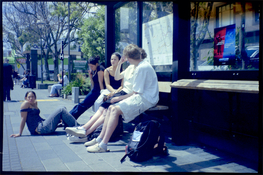
I have been getting very good results this way. A couple attached - Kodak Colorplus 200 with Panasonic Mini&Zoom compact.
 

Attachments

  • DSC00169.jpg
    DSC00169.jpg
    1.2 MB · Views: 102
  • DSC00193.jpg
    DSC00193.jpg
    1 MB · Views: 99
I have been getting very good results this way. A couple attached - Kodak Colorplus 200 with Panasonic Mini&Zoom compact.

The one of the cat looks really nice--and rather natural; the second one is way too blue for some reason.
 
hit or miss, some results are amazing but some are poor to say the least
Consider taking more control and just do it manually: https://tinker.koraks.nl/photography/flipped-doing-color-negative-inversions-manually/
The main thing is not so much the choice of software tool, but to recognize casts and crossover and then to translate that into curve adjustments. It's not awfully difficult; it just takes experience. I find this experience comes automatically if you allow yourself to be critical and you work with curves instead of relying on more complex tools that do a certain degree of black-box magic, which IMO stands in the way of really understanding what's going on. These automated tools can do a perfectly fine job and they're convenient, so don't let me discourage you from using them if/as long as they work for you. But if you run into 'hit or miss' issues or problems with consistency, consider the full-manual approach, at least as a learning tool.
 
the second one is way too blue for some reason.
Yes, it has a severe cyan and blue cast. The historgram is also not smooth, suggesting that color corrections were done in 8-bit space; I'd do this in 16 bit and only convert to 8 bit jpeg at the end of the chain to avoid posterization, especially if the decision is made later on to apply e.g. local burning & dodging.

1766824819031.png
 
The one of the cat looks really nice--and rather natural; the second one is way too blue for some reason.

The bus stop pic doesn't look to have a blue cast on my set up, if anything a little yellow. Must be monitors I think though I did apply some corrections to colour/density. The cat is exactly as it came out of the camera and inverted as described with nothing further applied. It is a flash shot which probably makes for more consistency.

Apropos nothing, the thumbnail looks more blue than the full size on my 2013 Macbook Pro.
 
Last edited:
Yes, it has a severe cyan and blue cast. The historgram is also not smooth, suggesting that color corrections were done in 8-bit space; I'd do this in 16 bit and only convert to 8 bit jpeg at the end of the chain to avoid posterization, especially if the decision is made later on to apply e.g. local burning & dodging.

View attachment 414455

Similar reply to rulnacco. Very strange.
 
All this takes me back to the 1970's when we were all struggling with colour printing. Even then it was a hit and miss affair. I had the best and easiest results with an Epson flatbed which has now gone to the great flatbed heaven and I cannot justify the cost of a replacement at my age. It used Silverfast, being an early one.
 
The bus stop pic doesn't look to have a blue cast on my set up, if anything a little yellow. Must be monitors I think though I did apply some corrections to colour/density. The cat is exactly as it came out of the camera and inverted as described with nothing further applied. It is a flash shot which probably makes for more consistency.

Apropos nothing, the thumbnail looks more blue than the full size on my 2013 Macbook Pro.
Sorry, but I am another person who sees the bus stop photo as being too blue, especially in the shadows and darker tones. The whites and light tones are much less blue. When was the last time you calibrated your screen?
 
Wow I am staggered. Never had much trouble with colour though I do much more mono. I will take all your comments on board and keep an eye on things.
 
the thumbnail looks more blue than the full size on my 2013 Macbook Pro
Hm, I don't see it.
Anyway, color management/profiling issues might be part of the problem here. The desktop monitor I'm currently on I calibrate from time to time so I know the colors that I see are fairly close to how they are supposed to look. There are of course numerous steps in the process where a perceived cast can occur.

The cat is exactly as it came out of the camera
Not to be flippant, but "as it came out of the camera" is IMO a little dubious when we're talking about color negative. There's no inherently fixed color balance like with e.g. E6 film.
 
One of the reasons I gave up on negative color film and use chromes exclusively. No orange mask to deal with or conversions to be done. You can check the Chrome itself to know whether you nailed the exposure. Easy to scan. Of course, chromes have higher contrast and less dynamic range.
 
Hm, I don't see it.
Anyway, color management/profiling issues might be part of the problem here. The desktop monitor I'm currently on I calibrate from time to time so I know the colors that I see are fairly close to how they are supposed to look. There are of course numerous steps in the process where a perceived cast can occur.


Not to be flippant, but "as it came out of the camera" is IMO a little dubious when we're talking about color negative. There's no inherently fixed color balance like with e.g. E6 film.

It is exactly as I say. The flash shots all were as good. Bright sunlight seems to produce the worst of the problems.
 
Last edited:
Photrio.com contains affiliate links to products. We may receive a commission for purchases made through these links.
To read our full affiliate disclosure statement please click Here.

PHOTRIO PARTNERS EQUALLY FUNDING OUR COMMUNITY:


Ilford ADOX Freestyle Photographic Stearman Press Weldon Color Lab Blue Moon Camera & Machine
Top Bottom