• Welcome to Photrio!
    Registration is fast and free. Join today to unlock search, see fewer ads, and access all forum features.
    Click here to sign up

Tri-Color Narrow Band RGB DSLR scanning

Beach Girl-3

Beach Girl-3

  • 0
  • 0
  • 20
Bondi Beach Girl-2

Bondi Beach Girl-2

  • 0
  • 0
  • 19

Recent Classifieds

Forum statistics

Threads
202,473
Messages
2,841,266
Members
101,345
Latest member
amass_design
Recent bookmarks
0
Joined
Jan 1, 2025
Messages
76
Location
Puerto Rico
Format
35mm
Greetings all, I have recently switched to using a narrow band RBG light for DSLR scanning. So far I have only done single capture with much improved results over 95 CRI, but I would like to utilize the capability of capturing individual RGB frames and compositing them so as to forgo use of any conversion software and get more "accurate" conversions. So far I have not had much success finding a step-by-step workflow that works. The closest would be this post by Alexi Machsas. It includes some confusing aspects of exporting linear TIFFs from RawTherapee that I don't quite understand so I skipped that step just to see what would happen.

I attempted following his other steps using just the raw files in PS, but did not have much success. Here are the steps outlined at the end of his rather lengthy piece found here:

https://medium.com/@alexi.maschas/color-negative-film-color-spaces-786e1d9903a4

In order to eliminate any gamma curve your RAW editor may apply to the image, you want to export a TIFF with “linear” gamma. The best way I’ve found to do this is to use RawTherapee and apply a “neutral” profile. If you’re comfortable with the command line, you can use dcraw to apply linear gamma with dcraw -g 0 0. You only want to adjust the gamma curve of the image after you’ve composited it, to account for the inherently low contrast in film negatives.

  1. Create a new document and set the background color to black.
  2. Paste each color channel image into your new document.
  3. Set the blend mode of each color channel to “lighten” in the layers panel.
  4. Add an “invert” adjustment layer.
  5. Add a curves adjustment layer and select auto-options -> snap neutral midtones.
  6. Add a channel mixer adjustment layer and reduce the amount of green and blue in the image until it looks correct. You can use an image with a grey card to calibrate these amounts.
For example, when I set the three layers to "lighten" all the layers disappear. Then when I add the "invert" adjustment layer the negatives reappear looking similar to how they would look when shot in single capture with the RGB light. I then added the curves adjustment layer, but this is where I am stuck. The negative is exactly that, still a negative. If I add an additional "invert" adjustment layer I then get a positive, but nowhere near a desirable conversion.

I realize this is rather niche, but surely there must be a way to layer and convert these properly. Does anyone have a workflow for this relatively new technique?
 

Attachments

  • RGB Conversion.jpg
    RGB Conversion.jpg
    572 KB · Views: 24
So what you're having trouble with is after RawTherapee, in another image program, combining the channels? If that's correct I think the guide to making trichromes out of 3 B&W images would be the steps you need. There's more than one way to do it.
 
Yes, I skipped the linear TIFF conversion in RawTherapee and worked off the raws in PS.

I am also not working with a debayered B/W sensor. I realize this is not technically correct and negates some of the benefit of trichromatic scanning but I am simply interested in understanding what kind of results I can get from this technique with the equipment on hand.
 
Last edited:
For Gimp: http://archive.brhfl.com/ph.brhfl.com/2012/09/07/gimp-trichromes/

This is how to do it in Photoshop (as described by Scott Bilotta in his Yahoo History of Photography Group):

The "goal is to create an image where the red record is copied to the red channel, the green to green and blue to blue. An easy way to do this in Photoshop is with the Merge Channels command. Merge Channels will take 3 separate same-size, flattened grayscale images and create a new RGB image. The command copies each image to one of the RGB channels. The result is a full-color photograph."
 
If I add an additional "invert" adjustment layer I then get a positive, but nowhere near a desirable conversion.
There's nothing in the process that somehow inherently locks the color balance in what it should be. In other words: you'll still have to adjust the curve for each color channel separately. This is also true if you use a linear gamma (i.e. eliminate any S-curve applied by the raw converter). Don't stare yourself blind at that 'linear gamma' issue. It's not a fix for color balance, which still needs to be arrived at in another way, most likely manually unless you're working with some kind of color target that allows some form of calibration.
 
I'm not overly hung up on the linear gamma TIFF aspect, but I thought it would be worth mentioning in the off chance that was the root of my problem here.

Adjusting the individual color channels isn't giving me anything usable, at least not with this pipeline. That being said I'm not at all an expert with this type of tinkering and clearly doing something wrong.

I don't think using GIMP is going to be a viable workflow for me. The author themselves state it's an outdated and frustrating software...and that was over 14 years ago.
 
The author themselves state it's an outdated and frustrating software...and that was over 14 years ago.
I use it all the time. The latest release was...idk, a week ago or so? The problem is not GIMP. Do the same thing in Photoshop and you'll notice it's exactly just as challenging.

The problem is that color neg inversions, esp. done manually, just takes experience and no software substitutes for that. You can get quicker results with the well-known automated tools, but they all have the same issue: consistency (or lack thereof). However, in many cases, that's not a very hard requirement, which I think explains why many people prefer that approach.

Any chance you could upload the TIFFs or even RAWs you've made of this test image so I can give it a spin? If that works, I can explain what I did and perhaps that helps any.
 
1772138024761.png


A lot depends on taste of course.

What I did:
* Convert each NEF to TIFF 16 bit. I turned off the highlight recovery adjustment in RawTherapee but didn't touch anything else (OK I did rotate 180 deg.)
* Import all TIFFs into a single image as layers in GIMP
* Adjusted curves on each layer with a simple linear adjustment so that the histogram for each layer occupied the entire width (so set black & white points basically)
* Then converted each layer to monochrome using the Mono Mixer. I only used the blue channel for the blue layer, green for green and red for red (so left the other colors at zero).
* Switched to greyscale mode
* Used the Colors -> Components -> Compose function to assemble the layers into a single RGB image
At this point I had basically the same as what you'd get with a normal color negative scan before it's inverted/made positive.
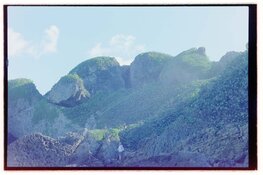
So for the final conversion I added an inversion (linear curve from top left to bottom right). Then I added separate color adjustment curves for each of the colors. I looked for the shadow patch at the left side of the frame (the little cave/shadow between the rocks at the image frame) and the brightest cloud just above the mountains as black resp. white points. The rest of the color balancing was basically visual and to taste. This shows the final adjustment:
1772138358215.png

Note how each color channel has its own S-curved adjustment. Note also that I pushed the blue curve pretty far to the right.

The bottom left corner of the image remains a little weird; I think this is a scanning artifact as it seems to have received a little less exposure during DSLR scanning. Could this be the case?

I kept the final balance much cooler than yours; this is because most of the scene is in the shade of the mountains and I personally prefer to keep shaded areas cooler as that's how they realistically look as well. Moreover, it benefits the green foliage IMO to not push towards yellow too much, which loses the richness in the greens very easily. However, this is all a matter of taste more than 'right' or 'wrong'.

Furthermore I allowed the shadows to drop down pretty far along the lower part of the image; these could easily be lifted (note the S-curved adjustment on the Value channel; the lower part could be lifted if desired). Again; a matter of preference; the negative itself and the scan have differentiation there that can be used to fill in those shadow areas as your NLP conversion also shows.
 
Thanks for the in-depth explanation koraks, much appreciated. I enjoy seeing how your subjective and objective interpretations vary from eye to eye. I think it very much emphasizes that there is no "correct" conversion, only pleasing ones. This was shot on 500T developed in my DIY ECN-2.

I will give this a shot in GIMP. All in all, it seems doing manual conversions is going to be far too time consumptive to make it particularly viable but it's something extra to have in the back pocket.

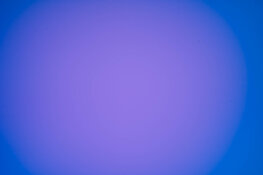
As far as the anomaly in the corner goes...it is the one thing that has confused me about this RGB light. It creates a strong vignette that also has a tint shift. It is also stronger on one side of the frame. That is what you're seeing with the red in the corner. This does not occur with white light. I had thought that converting individual RGB frames would perhaps eliminate this, but that is not the case. It is not caused by the film holder. I have been able to eliminate this by filling less of the frame with the negative and creating a custom radial mask with tint adjustments or doing FFC. I am stumped as to what is causing it. I thought about creating a separate thread to discuss if others have run into this issue.

Here is an exaggerated example. This is a shot of just the light in RGB mode, no holder present, with contrast pumped up. I am using the big scanlight by jackw01. I asked him about it and he didn't have much of an answer. I shot examples with three different cameras and lenses and always got similar (but not identical) results.
 

Attachments

  • RGB vignette.jpg
    RGB vignette.jpg
    63.7 KB · Views: 9
Ah, that's an interesting effect. Could be related to angle of the light as seen through the diffuser, maybe? I'd have to think about it. I think the Scanlight device is fairly thin which means it allows for little light mixing and diffusion. Maybe with a larger diffusion chamber the problem would go away. IDK, just a hunch.

You're definitely right about the subjective/objective and no right & wrong! Also, I did this in one particular way and order, but there are many variations to the theme that should also work.
 
The big scanlight is actually quite deep compared to other lights I have seen. 5cm roughly. I believe it was designed this way specifically to eliminate poor light mixing. Jack said that it could maybe be caused by IR light reflecting off the lens or holder, but when taking these sample images I had the camera well away from the light source such that any reflection would be negligible.

Maybe it is a faulty device. One other user on the NLP forum told me they saw a similar effect which was reduced by lifting the film plane farther from the surface of the light. I purchased some NR glass to elevate the holder a bit, but it has yet to arrive.
 
Photrio.com contains affiliate links to products. We may receive a commission for purchases made through these links.
To read our full affiliate disclosure statement please click Here.

PHOTRIO PARTNERS EQUALLY FUNDING OUR COMMUNITY:


Ilford ADOX Freestyle Photographic Stearman Press Weldon Color Lab Blue Moon Camera & Machine
Top Bottom