


Hello All,
I will post a few tips to get you started.
General Info:
Galleries are now under the "Media" tab. This area will contain images and I'll be adding a videos section soon.
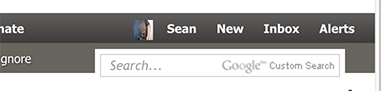
The new information area located to the right of the main menu bar: It houses your account details, New Posts count since last visit, Inbox, and Alerts:
Mouse over your avatar icon and name to see a full list of your account/site options:
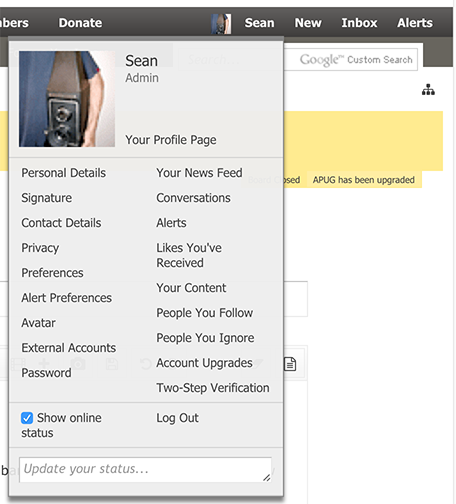
On that drop down, you can click the link for "Your Profile Page" to view what others see when they look at your account. Below that you will see a list of links for your settings.
Hovering over your Inbox link shows recent Private Messages, clicking "Inbox" will take you to your inbox. Also note, this system refers to Private Messages" as "Conversations".
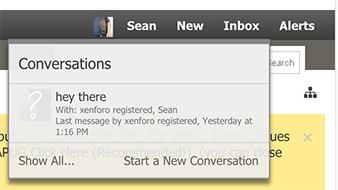
You should have some new features within the Conversation system. it groups chats into single messages and allows for file attachments as well.
When starting a new conversation you'll notice the upload file button:
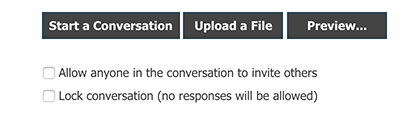
Also, notice the ability to invite others to an ongoing private conversation.
The Forums:
The forums are very similar to what we had but a few new features. You'll find some quick links in the main menu bar 'sub menu':

Ignoring Forums and Threads:
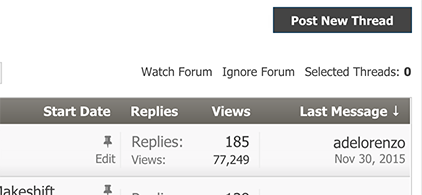
A new feature is to Ignore Forums and Threads with much more control. You will find these options at the top of forums and threads:
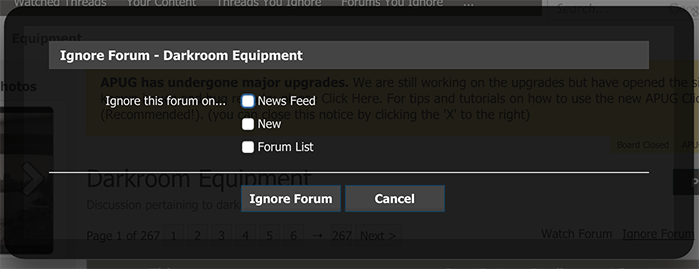
Once clicking to ignore, you will get your options:
To view what you have ignored, use the link in our user drop down menu:
Forums Ignored
Threads Ignored near the bottom.
Access the menu by hovering your mouse over your name:

Notice the links "Threads You Ignore" "Forums You Ignore". View what you are ignoring and there are options to 'un-ignore'.
Searching Forums, Threads and the whole site:
When you are in a forum, the search box on the menu bar becomes the searchbox for THAT forum only. Notice the check box which is selected "search this forum only", at times you may need to uncheck this box (there are other options there as well):

Forum Sidebar:
The sidebar can be customized by clicking the link at the bottom as seen here:
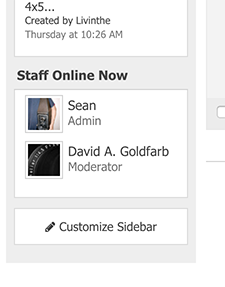
You can re-order and adjust the blocks as you like. Also notice, our staff which are on line can now be seen in the sidebar.
Searching APUG:
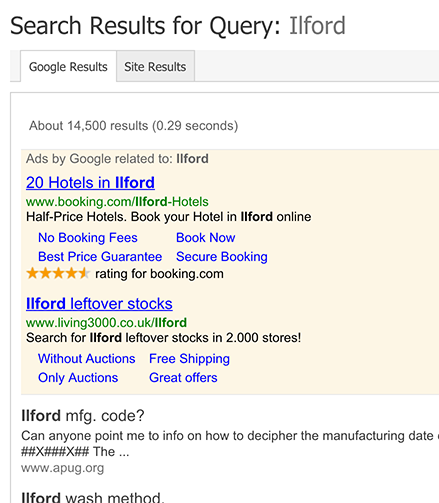
We offer the same google search tool (*update Google is temporarily disabled), but it also retrieves site searches. Use the tabs to swap (screenshots below):
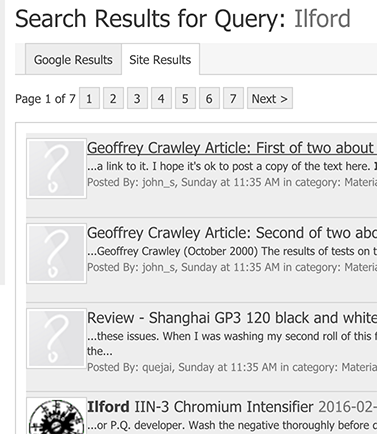
and now the in house site results:
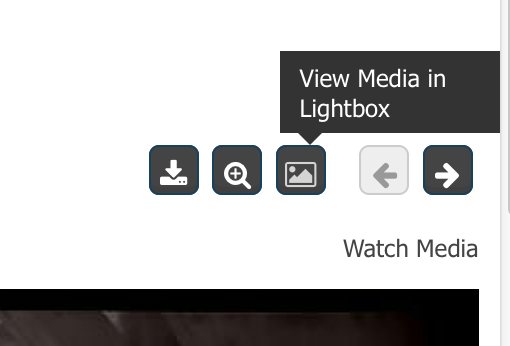
Viewing Gallery images in Lightbox: To open a gallery image in full with darkened background, click the icon located top right of the image as seen here:
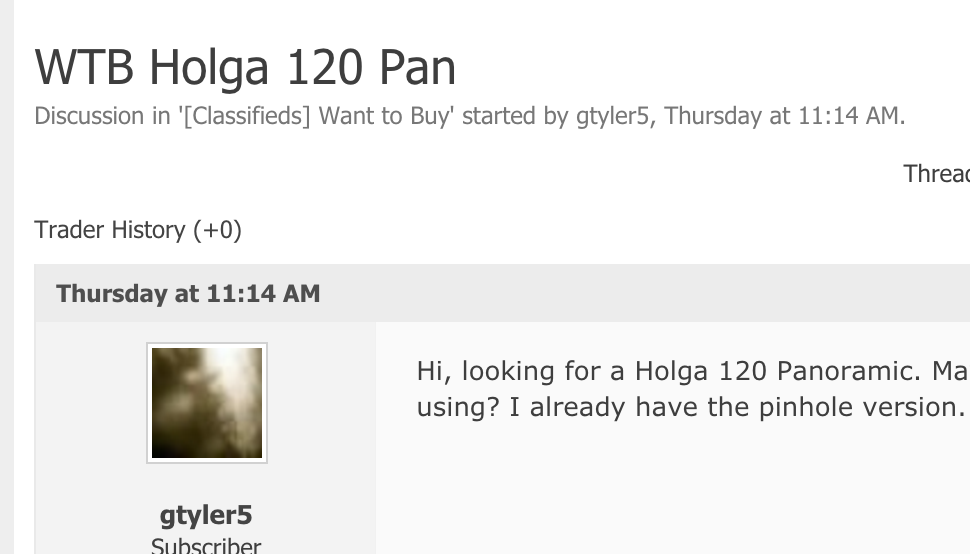
Classified ads, new feedback system: When viewing an ad, look to the top of the sellers avatar, you will see a feedback tool called "Trader History":
Only Subscribers can post feedback. This is to reduce spamming of sellers or drive by fake feedback postings. To learn more about this it can be discussed here in the classifieds area: (there was a url link here which no longer exists)
The Chatroom:
The chatroom has a "Popup" link that opens the chat in it's own window. You can then resize the chat as you please. Feel free to open it and leave it running as much as you like.

Click a members avatar:
Click a members avatar for a popup of info and links to their main profile page:

Go to most recent posts from the forum lists:
Simply click the link in the description areas, for example here in the forum list view, click the thread title to be taken to the most recent post.

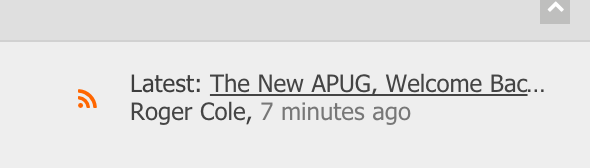
And here in threads view, click "7 minutes ago" to be taken to the most recent post:

How to Print: Print option located in Thread Tools menu:

Conversations (Previously known as Private Messages PMs)
"Conversations" have become one of my favorite features of the new system. It gives you the power to have a 1 on 1 exchange with someone as you used to know (private message), but it then also allows you to invite additional people into the message for a forum like discussion. The easiest way to start a conversation with someone is to click their avatar, and on their info box click "Start a conversation". In this example I invited Rob to a conversation:

Note the info box on the left, it shows who is in the conversation. What if Rob says to me "I think John knows about this", well then I can click the "Invite More" link at the bottom of the info block and invite John directly into the conversation. Another option is to have a conversation that anyone can invite others to join. When creating a new message at the bottom select "Allow Anyone..."

But.. suppose your conversation has already started and you need to open it to all? Click to edit your main conversation (your first message in the conversation thread), and you will be given the option to open it:

Here is an example of my moderator team involved in a group conversation:

A very powerful tool for engaging 1 or many others in a private discussion. It may take a little getting used to, but I could never go back to the old way after this. Also, instead of your inbox filling up with 100's of individual messages, this keeps all messages grouped into individual conversations. No need for me to start another conversation with Rob or the entire moderator team, I go into the existing conversation and post a message.
How to get the most quality from your avatar:
(there was a url link here which no longer exists)
These are only a few of the dozens of interesting new features that you'll discover. Feel free to ask any questions here or post additional tips for others. Thanks!
I will post a few tips to get you started.
General Info:
Galleries are now under the "Media" tab. This area will contain images and I'll be adding a videos section soon.
The new information area located to the right of the main menu bar: It houses your account details, New Posts count since last visit, Inbox, and Alerts:
Mouse over your avatar icon and name to see a full list of your account/site options:
On that drop down, you can click the link for "Your Profile Page" to view what others see when they look at your account. Below that you will see a list of links for your settings.
Hovering over your Inbox link shows recent Private Messages, clicking "Inbox" will take you to your inbox. Also note, this system refers to Private Messages" as "Conversations".
You should have some new features within the Conversation system. it groups chats into single messages and allows for file attachments as well.
When starting a new conversation you'll notice the upload file button:
Also, notice the ability to invite others to an ongoing private conversation.
The Forums:
The forums are very similar to what we had but a few new features. You'll find some quick links in the main menu bar 'sub menu':
Ignoring Forums and Threads:
A new feature is to Ignore Forums and Threads with much more control. You will find these options at the top of forums and threads:
Once clicking to ignore, you will get your options:
To view what you have ignored, use the link in our user drop down menu:
Forums Ignored
Threads Ignored near the bottom.
Access the menu by hovering your mouse over your name:
Notice the links "Threads You Ignore" "Forums You Ignore". View what you are ignoring and there are options to 'un-ignore'.
Searching Forums, Threads and the whole site:
When you are in a forum, the search box on the menu bar becomes the searchbox for THAT forum only. Notice the check box which is selected "search this forum only", at times you may need to uncheck this box (there are other options there as well):
Forum Sidebar:
The sidebar can be customized by clicking the link at the bottom as seen here:
You can re-order and adjust the blocks as you like. Also notice, our staff which are on line can now be seen in the sidebar.
Searching APUG:
We offer the same google search tool (*update Google is temporarily disabled), but it also retrieves site searches. Use the tabs to swap (screenshots below):
and now the in house site results:
Viewing Gallery images in Lightbox: To open a gallery image in full with darkened background, click the icon located top right of the image as seen here:
Classified ads, new feedback system: When viewing an ad, look to the top of the sellers avatar, you will see a feedback tool called "Trader History":
Only Subscribers can post feedback. This is to reduce spamming of sellers or drive by fake feedback postings. To learn more about this it can be discussed here in the classifieds area: (there was a url link here which no longer exists)
The Chatroom:
The chatroom has a "Popup" link that opens the chat in it's own window. You can then resize the chat as you please. Feel free to open it and leave it running as much as you like.
Click a members avatar:
Click a members avatar for a popup of info and links to their main profile page:
Go to most recent posts from the forum lists:
Simply click the link in the description areas, for example here in the forum list view, click the thread title to be taken to the most recent post.
And here in threads view, click "7 minutes ago" to be taken to the most recent post:
How to Print: Print option located in Thread Tools menu:
Conversations (Previously known as Private Messages PMs)
"Conversations" have become one of my favorite features of the new system. It gives you the power to have a 1 on 1 exchange with someone as you used to know (private message), but it then also allows you to invite additional people into the message for a forum like discussion. The easiest way to start a conversation with someone is to click their avatar, and on their info box click "Start a conversation". In this example I invited Rob to a conversation:
Note the info box on the left, it shows who is in the conversation. What if Rob says to me "I think John knows about this", well then I can click the "Invite More" link at the bottom of the info block and invite John directly into the conversation. Another option is to have a conversation that anyone can invite others to join. When creating a new message at the bottom select "Allow Anyone..."
But.. suppose your conversation has already started and you need to open it to all? Click to edit your main conversation (your first message in the conversation thread), and you will be given the option to open it:
Here is an example of my moderator team involved in a group conversation:
A very powerful tool for engaging 1 or many others in a private discussion. It may take a little getting used to, but I could never go back to the old way after this. Also, instead of your inbox filling up with 100's of individual messages, this keeps all messages grouped into individual conversations. No need for me to start another conversation with Rob or the entire moderator team, I go into the existing conversation and post a message.
How to get the most quality from your avatar:
(there was a url link here which no longer exists)
These are only a few of the dozens of interesting new features that you'll discover. Feel free to ask any questions here or post additional tips for others. Thanks!
Attachments
Last edited:


 but I don't understand a bit about this new features. Time will tell....


