
• Welcome to Photrio!
    Registration is fast and free. Join today to unlock search, see fewer ads, and access all forum features.
    Click here to sign up

How do I make the sky a smooth gradation instead of splotchy in Photoshop?

Recent Classifieds

Forum statistics

Threads
202,671
Messages
2,843,854
Members
101,452
Latest member
LookThroughTheLens
Recent bookmarks
0

manfrominternet

Member
Allowing Ads
Joined
Sep 24, 2020
Messages
137
Location
Los Angeles
Format
Large Format
Hi all,

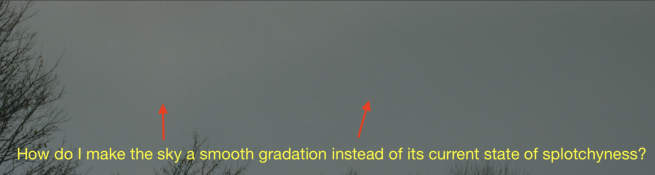
My experience with Photoshop (Photoshop 2022 to be precise) is beginner-intermediate. I shoot medium format (6x9) and large format (4x5) film, and I scan via my mirrorless camera. Since I try to get as much detail as possible I take, for example, 3 photos of a 6x9 negative (left side of the negative, middle, and finally the right side) and stitch them together with Photoshop's Photomerge tool. However, because of the natural vignetting with my mirroless camera (even when I use the Lens Profile Correction), I get these splotchy-looking skies that I can't quite fix. I've tried the Healing Brush Tool, the Patch Tool, the Clone Stamp Tool, and even the Color Replacement Tool. None of these tools are able to fix this problem, and actually make the sky look even more splotchy. There's a natural film grain that gets erased too if I try to over edit.

I've included a screenshot so you guys can see what I mean. Is there any way to quickly fix this problem? Any help from you Photoshop editing pros would be very, very much appreciated.
 

Attachments

  • Screen Shot 2021-12-10 at 6.37.42 PM.png
    Screen Shot 2021-12-10 at 6.37.42 PM.png
    1.1 MB · Views: 354
Well, ideally, you should either get a flatbed scanner (meant to do the job) or photograph the negatives in one shot, avoiding the stitching. I don't think you can resolve this in Photoshop. The solution is to avoid introducing the flaw.
 
Hi all,

My experience with Photoshop (Photoshop 2022 to be precise) is beginner-intermediate. I shoot medium format (6x9) and large format (4x5) film, and I scan via my mirrorless camera. Since I try to get as much detail as possible I take, for example, 3 photos of a 6x9 negative (left side of the negative, middle, and finally the right side) and stitch them together with Photoshop's Photomerge tool. However, because of the natural vignetting with my mirroless camera (even when I use the Lens Profile Correction), I get these splotchy-looking skies that I can't quite fix. I've tried the Healing Brush Tool, the Patch Tool, the Clone Stamp Tool, and even the Color Replacement Tool. None of these tools are able to fix this problem, and actually make the sky look even more splotchy. There's a natural film grain that gets erased too if I try to over edit.

I've included a screenshot so you guys can see what I mean. Is there any way to quickly fix this problem? Any help from you Photoshop editing pros would be very, very much appreciated.
You may be suffering from JPG artifacts. If you use the D noise filter in Photoshop, has an option to illuminate these artifacts
 
Get a better lens. An enlarger lens perhaps. Or stop down some more to avoid vignette.
 
The JPG 'Quality' parameter may be set too low during file save, causing the software to save bits (more compact file) during compression by calling similar color shades 'the same', causing the blotchiness of the sky. Never use Quality setting under about 7 (if 10 is highest in your software).
 
Avoid retouching tools on large patches of sky; as you’ve seen, they do not help much!

If you’re using autoexposure or auto white balance, switch to manual and use the same settings for all portions of an image you plan to stitch.

Another factor to consider is bit depth. If you’re stitching JPEGs, you’re working with 8 bits per channel. This is fine most of the time, but may not be very friendly to smooth gradients like skies, especially if any processing is applied (either in camera or afterwards). Try shooting in your mirrorless camera’s raw format and working with a 16-bit image instead.
 
Rather than trying to fix the problem after it has happened, you should try to minimize it in the first place. The issue is likely caused by uneven exposure/brightness across different parts of the processed frame, which when combined together, result in tonal variations at the joins.

Exposure variations across the frame can be caused by one of two things: 1) uneven illumination from your light source, 2) uneven transmission from the lens, which is inaccurately compensated for by the lens profile. Making improvements in both/either of these areas should improve your end results.

In terms of the illumination, I presume that when stitching, you are moving the film between shots? This is generally the most convenient way. However, if there is any unevenness in the light source, that will contribute to the adjoining sides of stitched frames not matching up. For example, if there is more light on the right side, then this side will end up lighter than the side it joins with in the next stitched shot. Assuming you are stuck with imperfect illumination, then you can avoid this problem by keeping the film in the same place relative to the light source between stitched shots - either by moving the camera, or by moving the entire film/light source combination. This could be difficult/inconvenient, depending on your setup.

To avoid having to do the above, you can try to improve the evenness of illumination across the frame in every shot. If it is completely even, then there is no need for the above. This will come down to your individual setup. If you take a mid-exposed shot without any film present, and view the histograms, you should aim to get a very narrow spike in each channel. If the spike has any width to it, then you may have significant unevenness (although any lens vignetting also contributes to this, so stop the lens right down for this test). You can also open the files with no lens profile corrections and check the brightness values in different parts of the frame. If you find significant unevenness, then you should look at ways to improve this.

Finally, lens vignetting. A smaller aperture reduces vignetting, so this should be considered. Obviously, there are big differences between lenses, so changing lenses is one option. But also, you can try to improve the corrections so that any vignetting is corrected perfectly. One option is to manually tweak the amount of vignetting correction, using measurements to check evenness. Another is to produce your own profile, which is likely to be more accurate than an 'off-the-shelf' profile. Adobe offer the 'Lens Profile Creator' software, which is free and comes with detailed instructions.

If you can get perfectly even illumination in your processed shots, then it's likely that your blotchiness will go away completely, or at least be much easier to edit out.
 
.. But also, you can try to improve the corrections so that any vignetting is corrected perfectly. One option is to manually tweak the amount of vignetting correction, using measurements to check evenness. Another is to produce your own profile, which is likely to be more accurate than an 'off-the-shelf' profile. Adobe offer the 'Lens Profile Creator' software, which is free and comes with detailed instructions.

Thanks for that. I’ve been researching how to set up a scanning system with a digital camera, so learning how to remove vignetting will be very helpful.
 
A couple of thoughts... Why not just one scan ? Another could be to use the sky replacement feature. Make and size a layer using a scan of an open portion of the sky in that negative. If necessary you can blur that layer to taste. Make a library of sky negatives and use a different sky if you are into that. Play around you will find something that will work.

http://www.jeffreyglasser.com/

http://www.sculptureandphotography.com/
 
Last edited:
Skies are very difficult to edit - they appear much more even and consistent than they really are. Some good suggestions here.
I would begin by editing either Pshop or Tiff files, 16 bit.
One other tip - you can do selective subtle editing (like burning in with an enlarger) by:
Go into quickmask and select the paint brush
Set the paint brush for black, make the shape large and very soft edged.
Adjust the strength of the brush to 20% - 30%, very weak, and paint in the area you want to edit. The soft edges will help blend the edit.
Come out of quickmask, then invert the image so that what you painted out (masked out) will now be the selected area (dismiss the warning that the selection will not be seen because of low value). Since the brush was set to a low value, changes will be subtle.
Make an adjustment layer for curves.
Play with the controls to see if you can do what you want. The low value selection will give you great control (requiring bigger moves with the curve pallet), and it will still not be easy, but you'll get better at finessing it with practice.
One other relatively unknown tip. After the curve adjustment layer is accepted, you can select the image of the mask in the layer, then hit the backslash key below the Delete key (at least on a Mac). This will load the mask as if in quickmask and you can use the brush (again, weak values - black to add to the mask, white to take away) to tweak the mask, resulting in real time changes to the file. Hitting the backslash key repeatedly will load and unload the mask. If you go too far, use the history to back up and try again.
Also, it may help to create a curve adjustment layer darkening the whole image (no mask) for working - it will exaggerate the unevenness you are trying to smooth out. When you are finished, trash this layer and it will look smoother.
It may also help to view the image smaller rather than larger to more easily see the unevenness you are trying to fix.
Also, like always, there are keyboard commands for all or most of these moves. Learn them and the whole thing goes much faster.
 
Create a new layer from background, blur this layer and then bring back the background non sky part. Flatten image and you're done.
 
Skies are very difficult to edit - they appear much more even and consistent than they really are. Some good suggestions here.
I would begin by editing either Pshop or Tiff files, 16 bit.
One other tip - you can do selective subtle editing (like burning in with an enlarger) by:
Go into quickmask and select the paint brush
Set the paint brush for black, make the shape large and very soft edged.
Adjust the strength of the brush to 20% - 30%, very weak, and paint in the area you want to edit. The soft edges will help blend the edit.
Come out of quickmask, then invert the image so that what you painted out (masked out) will now be the selected area (dismiss the warning that the selection will not be seen because of low value). Since the brush was set to a low value, changes will be subtle.
Make an adjustment layer for curves.
Play with the controls to see if you can do what you want. The low value selection will give you great control (requiring bigger moves with the curve pallet), and it will still not be easy, but you'll get better at finessing it with practice.
One other relatively unknown tip. After the curve adjustment layer is accepted, you can select the image of the mask in the layer, then hit the backslash key below the Delete key (at least on a Mac). This will load the mask as if in quickmask and you can use the brush (again, weak values - black to add to the mask, white to take away) to tweak the mask, resulting in real time changes to the file. Hitting the backslash key repeatedly will load and unload the mask. If you go too far, use the history to back up and try again.
Also, it may help to create a curve adjustment layer darkening the whole image (no mask) for working - it will exaggerate the unevenness you are trying to smooth out. When you are finished, trash this layer and it will look smoother.
It may also help to view the image smaller rather than larger to more easily see the unevenness you are trying to fix.
Also, like always, there are keyboard commands for all or most of these moves. Learn them and the whole thing goes much faster.

Thank you so much for this! I really appreciate the step-by-step instructions particularly because I'm still not an expert with Photoshop. This is definitely great advice that I will absolutely try.

I should have mentioned, when I first posed the question, that I shoot RAW only (with my Sony a7R IV's 16-shot 240mp pixel shift mode), and I do edit in 16-bit. I have a Negative Supply scanning system with an 5x7" 99% CRI light source, so the lighting is completely even. Using a mirror, I also make sure that the camera is perfectly parallel to the negative plane and also make absolutely sure that the negative/slide is 100% flat, which is critical when doing DSLR/mirrorless scanning.

I use f/8 when scanning, which after testing seems to be the sharpest aperture. I might be able to get away with f/9 or even f/10, but I'll have to do some testing.
 
If you're using an a7R, just shoot one frame. Don't bother with stitching unless you're shooting 6x12 or more (or 4x5).

Use lens correction on the RAW file. I can do it in-camera with my Canon 90D, but the end result is a JPG.

My standard recommendations for stitching (which I think you should skip, but anyway), are to use manual exposure, setting the aperture/shutter based on a blank bit of the negative and using those settings on every frame. Focus on the grain. 20% overlap is good. If distortion/vignetting is a problem, fix it BEFORE trying to stitch. f/8 is probably the ideal aperture, as any more than that and you may start hitting diffraction on modern DSLR's.
 
Photrio.com contains affiliate links to products. We may receive a commission for purchases made through these links.
To read our full affiliate disclosure statement please click Here.

PHOTRIO PARTNERS EQUALLY FUNDING OUR COMMUNITY:


Ilford ADOX Freestyle Photographic Stearman Press Weldon Color Lab Blue Moon Camera & Machine
Top Bottom
