• Welcome to Photrio!
    Registration is fast and free. Join today to unlock search, see fewer ads, and access all forum features.
    Click here to sign up

Horrible colors on film scans, could my development be messed up? Pics inside

Room with a view

A
Room with a view

  • 0
  • 0
  • 0
Georgia

H
Georgia

  • 1
  • 0
  • 37

Recent Classifieds

Forum statistics

Threads
202,567
Messages
2,842,445
Members
101,380
Latest member
andi63
Recent bookmarks
0

moodlover

Member
Allowing Ads
Joined
May 19, 2015
Messages
229
Format
Medium Format
I started developing and scanning Portra 400 (120) for the first time, on my Epson V800, and my negatives are far from normal. I see people on youtube do preview scans with colors that are very close to the final product. I scan using both Vuescan and Epson Scan, both give problematic results. I cant even use ColorPerfect because my raw scans are messed up to begin with, so CP doesn't get the colors right:

Vuescan preview, pro mode, w/ no adjustments, all sliders reset:

9dr7065.png


Below, Vuescan raws + ColorPerfect plugin for Photoshop. The small Epson Scan thumbnail at the top right is the scan using Epson Scan and its RGB levels greatly adjusted in an attempt to make colors look neutral:

onp9ewr.jpg


Vuescan tiff:

AlxLkE3.jpg


Default Epson Scan tiff (configuration: 'NO COLOR CORRECTION', all histograms and adjustments reset to 0):

M4hLBVV.jpg


I use the RGB levels in Epson Scan and adjust the shadow/mids/highs in each channel to remove color casts to the best of my ability and then after scanning, I find that I have to repeat this exact process in Photoshop to remove further color imperfections via the Color Balance tool. Then I come back to it half an hour later with fresh eyes and it doesn't look very neutral:

4LeF4Aw.jpg


What could be going on? I have another roll with a black background where the colors are really off too. Could my thermometer be broken, or my chemicals bad? Here is some Portra I found that I loved the colors of (of course this is lab-processed, so I can't hold a candle on this): Photography by Hannes Caspar - Album on Imgur
 
Have you tried setting the film base color in VueScan?
This is a step you take once per roll, which helps a lot when balancing colors.

In VueScan you:

- do a preview of a frame where you have a patch of clear film (the orange, see-through part)
- set the selection on a part of the above mentioned patch (small is ok)
- click on "Input -> Lock Exposure"
- do another preview (yes it's necessary)
- click on "Input -> Lock film base color"

- I normally save the VueScan profile at this point so that if it crashes I'm not losing everything.
- I also use "Filters -> Restore colors" so that I don't have to mess with film types.
- Finally, I use the "Color -> Color balance -> Manual" setting so that I can make fine adjustments

- Now load the frame you want to scan and do another preview
- Select the whole frame

When you get to this point, colors should be quite a bit better than the blue results you got above.

After this point, all you need to correct is colors on the first frame. If all frames fall under the same lighting type (e.g. overcast day), you shouldn't have to mess with color correction anymore for the roll.
 
Hint: revisit the selection in VueScan Color->Color Balance. You can also set B/W vendor/brand/type to Kodak/Portra/400NC. This isn't really necessary but might be an improvement.
 
You might also try cropping the image without the glass around the edge and also exclude the black edge, so crop slightly into the image and see if this improves.
If it is not better crop the image with a small amount of the black film edge in the scan analysis.
If it is necessary try taking the Black Neutral Pipette(densitometer) & neatralise within the black edge.
 
If you use the marquee to frame (crop) the picture so that it has no edge Dmin or markings, there is usually a big improvement.

PE
 
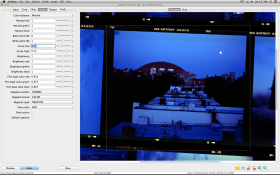
Guys thank you for all the helpful responses, but I really think something is wrong with my negatives. I did try the "lock exposure" technique but the previews are always screwed up so I think I have to step back a bit. I developed an 8th roll using my 2-week old Jobo/Tetenal C-41 1L kit and here is the results from the Vuescan 9 preview:

Screen Shot 2015-08-29 at 4.17.10 AM.png

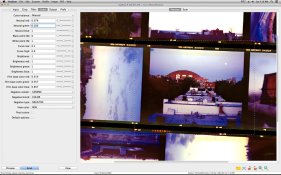
Why does everything have a crazy blue cast on it? If I right-click a neutral point to white balance it gets closer to the natural colors but everything still looks hideous:

Screen Shot 2015-08-29 at 4.18.26 AM.jpg

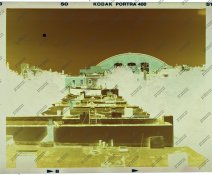
Raw vuescan (where is this yellow coming from? this is the scan I see this before it inverts):

raw0001.jpg

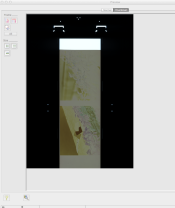
Screenshot of Epson Scan preview scanning (again, yellow negatives?):

Screen Shot 2015-08-29 at 1.22.23 AM (2).png

Epson Scan as a positive, no color adjustments, then applying Color Perfect plugin in Photoshop with Portra 400 preset:

epsonPositive.jpg
colorPerfectPortra400.jpg

I feel so hopeless, I can't figure out where the issue is...
 
Last edited by a moderator:
Strange, i don't have issues scanning color negative using Epson Scan, and i don't like to use VueScan, but if you want i can check out my settings and my scans with VueScan and then i will show you the result and settings if works, but i am very happy with Epson Scan so i don't use something else.
 
Photrio.com contains affiliate links to products. We may receive a commission for purchases made through these links.
To read our full affiliate disclosure statement please click Here.

PHOTRIO PARTNERS EQUALLY FUNDING OUR COMMUNITY:


Ilford ADOX Freestyle Photographic Stearman Press Weldon Color Lab Blue Moon Camera & Machine
Top Bottom