
• Welcome to Photrio!
    Registration is fast and free. Join today to unlock search, see fewer ads, and access all forum features.
    Click here to sign up

OT: Photoshop grayscale curves adjustment

White Doves of Peace

A
White Doves of Peace

  • 2
  • 1
  • 32
Flowstones

H
Flowstones

  • 5
  • 0
  • 45

Forum statistics

Threads
202,532
Messages
2,841,985
Members
101,368
Latest member
codytr4
Recent bookmarks
1

brbo

Member
Joined
Dec 28, 2011
Messages
2,389
Location
EU
Format
Multi Format
Slightly off-topic as it's not directly related to scanning and scanners, but still... I believe that there are some people that adjust their scans in PS after scanning :wink:

One of the stranger bugs I've seen recently. Present in (at least) Photoshop 22.2.0 and 22.3.0 (latest version).

If you have image in grayscale mode and add a curves adjustment layer, the adjustments are inverted. What?!

Left - original gradient, right - curve (that should result in brighter tones) layer applied:
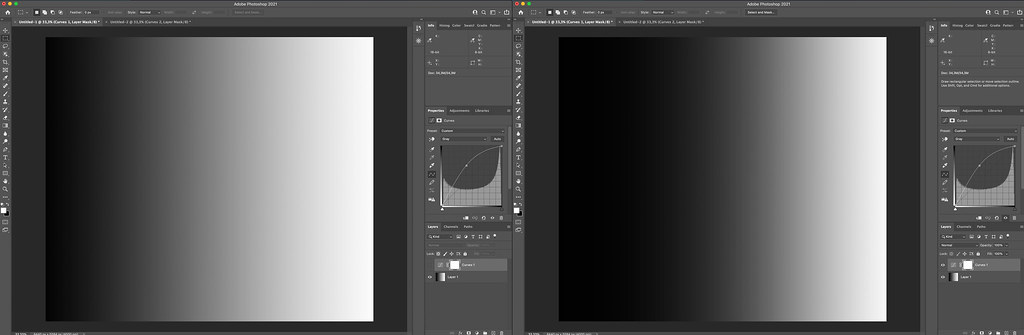


If you convert the image to RGB, it's all how it's supposed to be.

Strange! Even more strange that I can't find a single complaint about this on the net...
 
First of all, I do not see an inversion; blacks remain black and whites remain white not flipped.

Second, you are seeing a bit depth difference between RGB and Grayscale.

https://helpx.adobe.com/photoshop/using/bit-depth.html

Edit: Sorry, rushing to an appointment! Did not mean to sound abrupt!
 
Last edited:
Slightly off-topic as it's not directly related to scanning and scanners, but still... I believe that there are some people that adjust their scans in PS after scanning :wink:

One of the stranger bugs I've seen recently. Present in (at least) Photoshop 22.2.0 and 22.3.0 (latest version).

If you have image in grayscale mode and add a curves adjustment layer, the adjustments are inverted. What?!

Left - original gradient, right - curve (that should result in brighter tones) layer applied:


If you convert the image to RGB, it's all how it's supposed to be.

Strange! Even more strange that I can't find a single complaint about this on the net...

You are quite right. I was able to reproduce this on my CC21 as well as an older version 14 that comes in handy at times like this. So may be this goes way back. Unless both you and I are missing something, this does look like a bug. There is a Adobe form on reporting bug. I had found one myself long time ago and sure enough they fixed it at some point afterwards.
 
First of all, I do not see an inversion; blacks remain black and whites remain white not flipped.

I said that the _adjustments_ are inverted. The curve that would otherwise brighten the image in RGB mode, darkens the image when it's in greyscale mode.

You are quite right. I was able to reproduce this on my CC21 as well as an older version 14 that comes in handy at times like this. So may be this goes way back. Unless both you and I are missing something, this does look like a bug.

Actually, we _did_ miss something. It's not that the adjustments are executed incorrectly, the histogram in grayscale is presented in a way that one would not expect (dark tones are right and up, normally darktones are presented left and down on histogram).


For example in CS2 there is a way to dictate how the histogram is presented (and the settings is saved), but in "modern" PS I haven't yet discovered where to set this:

 
Thanks for clarifying. That is strange...
 
I said that the _adjustments_ are inverted. The curve that would otherwise brighten the image in RGB mode, darkens the image when it's in greyscale mode.


Actually, we _did_ miss something. It's not that the adjustments are executed incorrectly, the histogram in grayscale is presented in a way that one would not expect (dark tones are right and up, normally darktones are presented left and down on histogram).


For example in CS2 there is a way to dictate how the histogram is presented (and the settings is saved), but in "modern" PS I haven't yet discovered where to set this:


Whew...that was a close one. That might explain why nobody has complained about it...:smile:

To change the display - go to Curve Display Option in the drop menu up on the right. Then change to 0-255 from Pigment/Ink%. That will take it back to what you are used to.
 
To change the display - go to Curve Display Option in the drop menu up on the right. Then change to 0-255 from Pigment/Ink%. That will take it back to what you are used to.

Excellent! Thanks!
 
I can't tell you how much time I have wasted trying to find the answer to this exact problem. I am so relieved to know about the 'curves display option' ... I guess I should have been able to find this on my own. Live and learn.

So why is the default setting for this option different for greyscale images than for color images. Now _that_ would seem like a bug. Unless there is a way to change the default display option for curves on greyscale image?
 
Photrio.com contains affiliate links to products. We may receive a commission for purchases made through these links.
To read our full affiliate disclosure statement please click Here.

PHOTRIO PARTNERS EQUALLY FUNDING OUR COMMUNITY:


Ilford ADOX Freestyle Photographic Stearman Press Weldon Color Lab Blue Moon Camera & Machine
Top Bottom
